
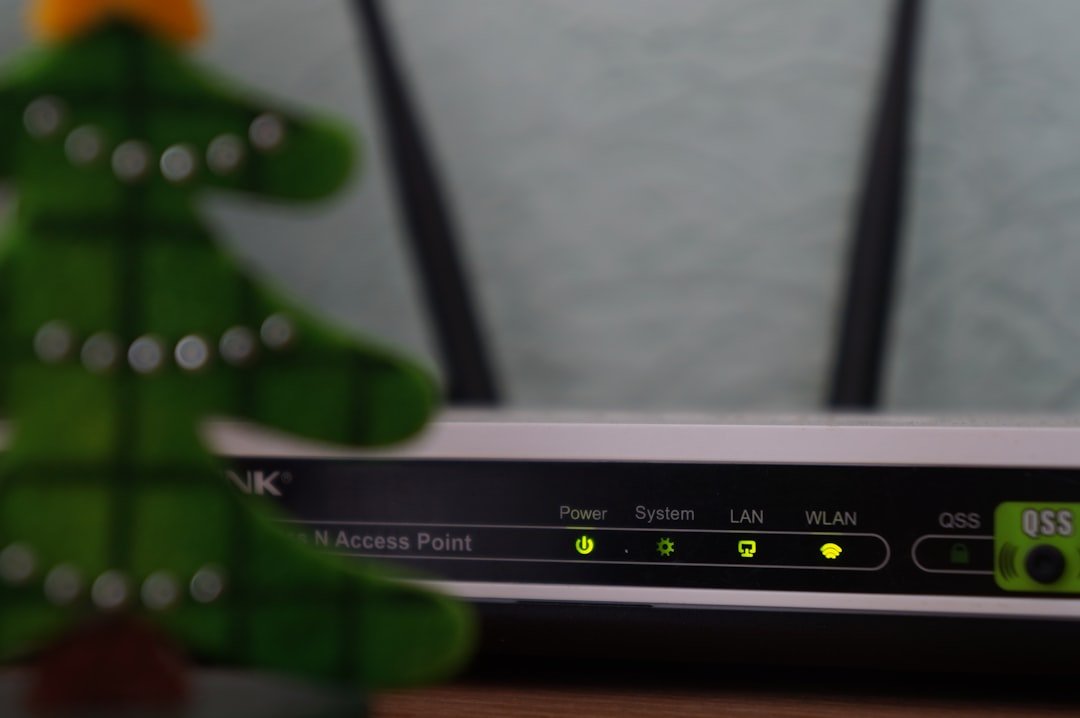
Wi-Fi coverage defines the geographical area where a wireless network can successfully transmit data to connected devices. Coverage strength and quality depend on multiple variables, including router specifications, frequency bands, and environmental obstacles. Wi-Fi networks operate on two primary frequency bands: 2.4 GHz and 5 GHz.
The 2.4 GHz band delivers extended range but experiences higher interference from household devices like microwaves, cordless phones, and Bluetooth devices. The 5 GHz band offers increased data speeds and reduced interference but provides limited range, making it less suitable for large areas or multi-wall penetration. Network performance varies significantly based on physical environment characteristics.
Standard home routers typically provide sufficient coverage for small apartments but may inadequately serve larger residences. Building layout, construction materials, and furniture placement directly affect signal propagation. Dense materials such as concrete, brick, and metal substantially reduce Wi-Fi signal strength, creating areas with poor or no connectivity.
Wooden structures and drywall cause minimal signal degradation, while glass and mirrors can reflect signals unpredictably. Additional factors influencing coverage include router antenna design, transmission power, and interference from neighboring networks. Multi-story buildings present unique challenges as signals weaken when traveling vertically through floors and ceilings.
Understanding these technical limitations enables users to strategically position equipment and implement solutions such as range extenders, mesh networks, or additional access points to optimize coverage.
Placement of Your Router
The placement of your router plays a pivotal role in determining the effectiveness of your Wi-Fi coverage. Ideally, the router should be positioned in a central location within your home or office to maximize its reach. This central positioning allows the signal to radiate outward evenly, minimizing dead zones and ensuring that all areas receive adequate coverage.
Elevating the router can also enhance its performance; placing it on a shelf or mounting it high on a wall can help reduce obstructions that may interfere with the signal. In addition to central placement, it is crucial to consider the surrounding environment when positioning your router. Avoid placing it near large metal objects, such as filing cabinets or refrigerators, as these can block signals.
Similarly, electronic devices like microwaves and cordless phones can cause interference, so keeping the router away from these appliances is advisable. Furthermore, if your home has multiple floors, consider using a multi-story approach by placing routers or access points on each level to ensure consistent coverage throughout the entire space.
Upgrading Your Router

As technology evolves, so do the capabilities of routers. Upgrading your router can significantly enhance your Wi-Fi experience, especially if you are using an older model that may not support the latest standards. Modern routers often come equipped with advanced features such as dual-band or tri-band capabilities, which allow them to operate on multiple frequency bands simultaneously.
This can help distribute network traffic more efficiently and reduce congestion during peak usage times. Moreover, newer routers typically support the Wi-Fi 6 (802.11ax) standard, which offers improved speed, capacity, and performance in environments with many connected devices. For instance, if you have a smart home filled with IoT devices, upgrading to a Wi-Fi 6 router can provide better performance by managing multiple connections more effectively.
Additionally, many modern routers come with enhanced security features and user-friendly interfaces that make it easier to manage your network settings and monitor connected devices.
Using Wi-Fi Extenders
Wi-Fi extenders are devices designed to amplify and extend the range of your existing wireless network. They work by receiving the Wi-Fi signal from your router and rebroadcasting it to areas that may be out of reach. This can be particularly beneficial in larger homes or spaces with challenging layouts where a single router may not suffice.
When strategically placed, extenders can effectively eliminate dead zones and provide consistent connectivity throughout your environment. However, it is essential to choose the right type of extender for your needs. Some extenders connect wirelessly to your router, while others may require a wired connection for optimal performance.
Additionally, consider the specifications of the extender; models that support dual-band frequencies can provide better performance by allowing devices to connect on either band based on their needs. It’s also worth noting that while extenders can improve coverage, they may introduce some latency due to the additional hop in the signal path. Therefore, for critical applications like gaming or video conferencing, a direct connection to the router is often preferable.
Optimizing Your Wi-Fi Channels
| Step | Action | Recommended Settings/Details | Expected Outcome |
|---|---|---|---|
| 1 | Choose Optimal Router Placement | Place router centrally, elevated, away from walls and interference | Improved signal distribution and reduced dead zones |
| 2 | Select Best Wi-Fi Channel | Use 2.4 GHz channels 1, 6, or 11; scan for least congested channel | Reduced interference and better connection stability |
| 3 | Use 5 GHz Band When Possible | Enable dual-band; connect devices supporting 5 GHz | Higher speeds and less interference, but shorter range |
| 4 | Update Router Firmware | Check manufacturer site; install latest firmware | Improved performance, security, and bug fixes |
| 5 | Adjust Transmit Power | Set to maximum or high power if available | Extended coverage area |
| 6 | Use External Antennas or Wi-Fi Extenders | Attach high-gain antennas or place extenders in weak signal areas | Boosted signal strength and coverage |
| 7 | Secure Network with WPA3 or WPA2 | Enable WPA3 or WPA2 encryption with strong password | Prevent unauthorized access and maintain network integrity |
| 8 | Limit Connected Devices | Disconnect unused devices; prioritize bandwidth for critical devices | Reduced congestion and improved speeds |
| 9 | Perform Speed and Coverage Tests | Use apps or tools to measure signal strength and speed in different rooms | Identify weak spots and optimize placement/settings |
Wi-Fi channels are specific frequencies within the 2.4 GHz and 5 GHz bands that routers use to communicate with devices. In densely populated areas, such as apartment complexes or urban neighborhoods, multiple routers may operate on the same channel, leading to interference and reduced performance. To optimize your Wi-Fi network, it is crucial to select a channel that minimizes overlap with neighboring networks.
Most routers automatically select channels based on current conditions; however, manually configuring your channel settings can yield better results in some cases. Tools like Wi-Fi analyzers can help identify which channels are congested and which are less utilized in your vicinity. For instance, in the 2.4 GHz band, channels 1, 6, and 11 are non-overlapping and are often recommended for optimal performance.
By switching to a less crowded channel, you can significantly improve your network’s speed and reliability.
Securing Your Wi-Fi Network
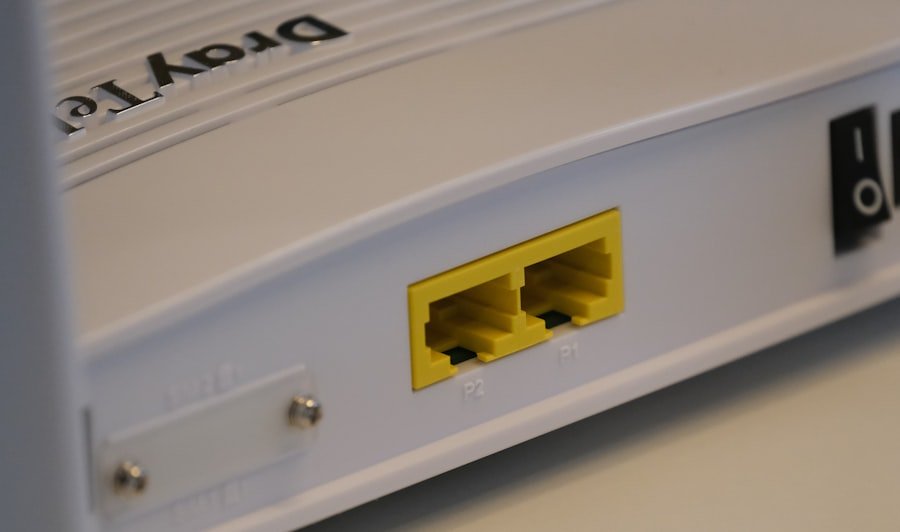
Securing your Wi-Fi network is paramount in today’s digital landscape where cyber threats are increasingly prevalent. An unsecured network can be an open invitation for unauthorized users to access your internet connection, potentially leading to bandwidth theft or even malicious activities that compromise your personal data. To safeguard your network, start by changing the default username and password of your router; these are often easily guessable and widely known.
Implementing WPA3 encryption is another critical step in securing your network. This latest security protocol offers enhanced protection against brute-force attacks compared to its predecessors. Additionally, consider disabling features like WPS (Wi-Fi Protected Setup), which can create vulnerabilities if not properly managed.
Regularly updating your password and monitoring connected devices can further bolster security measures and help you maintain control over who accesses your network.
Updating Your Router’s Firmware
Router firmware updates are essential for maintaining optimal performance and security. Manufacturers frequently release updates that address vulnerabilities, improve functionality, and enhance compatibility with new devices. Failing to update your router’s firmware can leave it susceptible to security risks and may prevent you from benefiting from performance improvements introduced in newer versions.
To update your router’s firmware, access its administrative interface through a web browser using its IP address. Most routers have an option for automatic updates; however, it’s wise to check for updates manually from time to time. The process typically involves downloading the latest firmware from the manufacturer’s website and following specific instructions for installation.
Keeping your firmware up-to-date not only enhances security but also ensures that you are leveraging all available features for an optimal networking experience.
Monitoring Your Wi-Fi Signal Strength
Monitoring your Wi-Fi signal strength is crucial for identifying areas where coverage may be lacking or where performance issues may arise. Various tools and applications are available that allow users to assess their network’s strength in real-time. These tools often provide visual representations of signal strength across different areas of your home or office, helping you pinpoint dead zones or weak spots.
Regularly checking signal strength can also inform decisions about potential upgrades or adjustments needed for your network setup. For example, if you notice consistently weak signals in certain areas despite having taken steps to optimize placement and configuration, it may be time to consider additional solutions such as Wi-Fi extenders or mesh networking systems. By actively monitoring signal strength and making data-driven adjustments, you can ensure that your Wi-Fi network remains robust and reliable for all users and devices connected within its range.
FAQs
What is the best location to place a home Wi-Fi router for maximum coverage?
The best location for a home Wi-Fi router is a central, elevated spot in your home, away from walls, metal objects, and electronic devices that can cause interference. Placing the router in an open area helps the signal reach all corners of your home more effectively.
How can I improve Wi-Fi coverage in a large home?
To improve Wi-Fi coverage in a large home, consider using Wi-Fi extenders, mesh Wi-Fi systems, or additional access points. These devices help expand the network range and eliminate dead zones.
What frequency band should I use for better Wi-Fi coverage?
Most modern routers offer dual-band options: 2.4 GHz and 5 GHz. The 2.4 GHz band provides better coverage over longer distances but at slower speeds, while the 5 GHz band offers faster speeds but shorter range. For maximum coverage, use the 2.4 GHz band or a dual-band router that automatically switches between bands.
How do obstacles affect Wi-Fi signal strength?
Obstacles such as walls, floors, furniture, and appliances can weaken Wi-Fi signals by absorbing or reflecting them. Materials like concrete, metal, and brick are especially disruptive. Minimizing these obstacles between the router and devices improves signal strength.
Should I update my router’s firmware for better performance?
Yes, regularly updating your router’s firmware can improve performance, security, and stability. Manufacturers often release updates that fix bugs and enhance features, which can contribute to better Wi-Fi coverage.
Is it necessary to secure my Wi-Fi network?
Absolutely. Securing your Wi-Fi network with a strong password and WPA3 or WPA2 encryption prevents unauthorized access, protects your data, and ensures optimal network performance.
Can changing the Wi-Fi channel improve coverage?
Yes, changing the Wi-Fi channel can reduce interference from neighboring networks, especially in densely populated areas. Using a less congested channel can improve signal quality and coverage.
What role do antennas play in Wi-Fi coverage?
Router antennas help direct and amplify the Wi-Fi signal. Adjusting external antennas to different angles or upgrading to high-gain antennas can enhance coverage and signal strength.
How do I know if my Wi-Fi coverage is sufficient?
You can test Wi-Fi coverage by walking around your home with a device and checking signal strength or internet speed. Many apps and tools are available to map Wi-Fi coverage and identify weak spots.
Can using a wired connection improve overall network performance?
Yes, connecting devices like desktop computers, smart TVs, or gaming consoles via Ethernet cables reduces wireless congestion and frees up Wi-Fi bandwidth, indirectly improving wireless coverage and performance for other devices.
About the Author