Battery drain represents a significant challenge for smartphone, tablet, and laptop users. Several key factors contribute to accelerated battery depletion that users should understand for optimal device management. The display serves as the largest power consumer in most mobile devices.
High-resolution screens, particularly OLED and LCD panels, require substantial energy to operate. Maximum brightness settings can increase power consumption by 30-50% compared to moderate levels. Content type directly affects energy usage, with video playback and graphics-intensive applications consuming 2-3 times more power than text-based activities or static image viewing.
Location services constitute another major drain on battery resources. GPS functionality requires continuous communication with satellites and cellular towers, consuming significant power. Applications including social media platforms, navigation software, and weather services frequently access location data, with some polling GPS coordinates every few seconds.
Studies indicate that constant GPS usage can reduce battery life by 20-40% depending on device specifications. Background processes operate continuously without direct user interaction, contributing to steady power consumption. These include automatic application updates, cloud synchronization services, push notifications, and system maintenance tasks.
Background app refresh, email fetching, and social media updates can collectively account for 15-25% of total battery usage during idle periods. Operating systems typically manage these processes, but user configuration significantly impacts their power consumption patterns.
Utilizing Built-in Battery Saving Features
Most modern devices come equipped with built-in battery-saving features designed to help users extend their device’s battery life. These features often include options such as battery saver modes, which limit background activity and reduce performance to conserve energy. For instance, when activated, these modes may restrict app refresh rates and lower screen brightness automatically, allowing users to stretch their battery life significantly during critical times.
In addition to battery saver modes, many devices offer detailed settings that allow users to customize their power-saving preferences. Users can often choose which apps are allowed to run in the background or receive notifications while in power-saving mode. This level of control enables users to prioritize essential applications while minimizing the impact of less critical ones on battery life.
By taking advantage of these built-in features, users can effectively manage their device’s energy consumption without sacrificing functionality.
Adjusting Screen Brightness and Timeout Settings
Screen brightness is one of the most significant factors affecting battery life on portable devices. High brightness levels can lead to rapid energy depletion, especially in devices with large displays. Users can manually adjust brightness settings or enable adaptive brightness features that automatically adjust screen brightness based on ambient light conditions.
This not only helps conserve battery life but also enhances the viewing experience by providing optimal visibility in various lighting environments. Timeout settings also play a crucial role in managing battery consumption. The screen timeout determines how long the display remains active when not in use.
By reducing the timeout duration, users can prevent unnecessary battery drain caused by an idle screen. For example, setting the screen timeout to 30 seconds instead of 2 minutes can significantly reduce energy consumption over time. This simple adjustment can be particularly beneficial for users who frequently forget to lock their devices or leave them unattended.
Managing Background Apps and Processes
Background apps and processes are often overlooked when it comes to battery management, yet they can significantly impact overall energy consumption. Many applications continue to run in the background even when not actively used, consuming resources and draining the battery. Users should regularly review their app usage and close any unnecessary applications running in the background.
On most devices, this can be done through a task manager or app switcher interface that allows users to see which apps are currently active. In addition to closing apps manually, users can also adjust settings for individual applications to limit their background activity. For instance, many social media and messaging apps allow users to disable background data usage or restrict notifications when not in use.
By taking these steps, users can minimize the impact of background processes on battery life and ensure that their devices remain operational for longer periods.
Optimizing Connectivity Settings
| Method | Description | Estimated Battery Life Improvement | Impact on Phone Usage |
|---|---|---|---|
| Reduce Screen Brightness | Lower the screen brightness manually or enable adaptive brightness to reduce power consumption. | Up to 15% | Minimal impact; screen remains readable. |
| Turn Off Unnecessary Connectivity | Disable Wi-Fi, Bluetooth, GPS, and NFC when not in use. | Up to 10% | May limit connectivity features temporarily. |
| Use Airplane Mode in Low Signal Areas | Enable airplane mode to prevent the phone from constantly searching for a signal. | Up to 20% | No calls or messages can be received while enabled. |
| Limit Background Data Usage | Restrict apps from using data in the background via system settings. | Up to 10% | Some apps may not update unless opened. |
| Shorten Screen Timeout | Set screen timeout to the shortest comfortable duration. | Up to 5% | Screen turns off faster when idle. |
| Disable Vibrations and Haptic Feedback | Turn off vibration for notifications and keyboard feedback. | Up to 3% | Less tactile feedback on interactions. |
| Use Dark Mode | Enable dark mode to reduce power usage on OLED screens. | Up to 7% | Visual theme changes to darker colors. |
| Close Unused Apps | Manually close apps running in the background. | Up to 5% | May improve performance and battery life. |
Connectivity settings are another critical area where users can make adjustments to prolong battery life. Features such as Wi-Fi, Bluetooth, and mobile data can consume substantial amounts of power when left active unnecessarily. For example, keeping Wi-Fi enabled while out of range of networks can lead to constant searching for connections, which drains the battery quickly.
Users should turn off Wi-Fi when not needed or enable airplane mode in situations where connectivity is not required. Bluetooth is another feature that can be a hidden drain on battery life. While it is essential for connecting wireless accessories like headphones and smartwatches, leaving Bluetooth on when not in use can lead to unnecessary power consumption.
Users should disable Bluetooth when they are not actively using connected devices or consider using wired alternatives when possible. Additionally, managing mobile data settings by limiting background data usage for specific apps can further optimize connectivity settings and enhance overall battery performance.
Monitoring and Managing Battery Usage
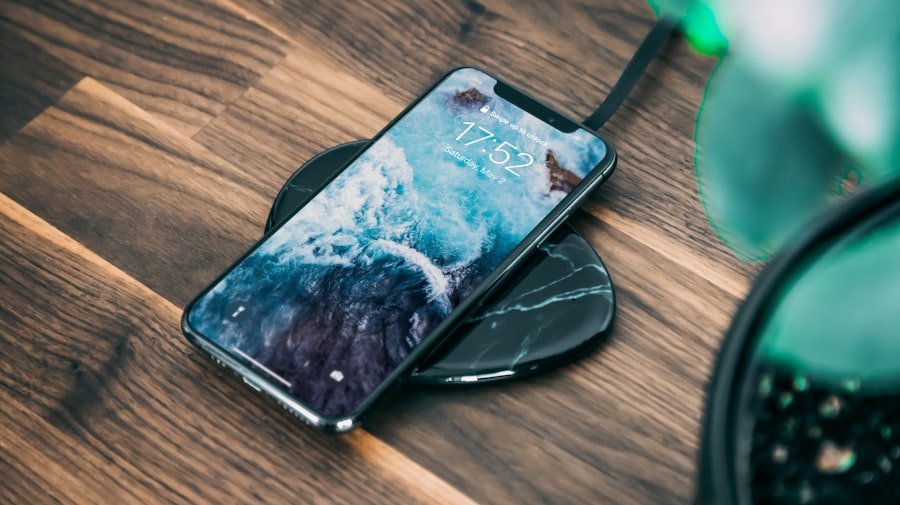
To effectively manage battery life, users should regularly monitor their device’s battery usage statistics. Most operating systems provide detailed insights into which applications and processes consume the most power. By reviewing this information, users can identify energy-hungry apps and make informed decisions about their usage patterns.
For instance, if a particular app is consistently draining the battery more than expected, it may be worth considering alternatives or limiting its use. In addition to monitoring app usage, users should also pay attention to system updates that may improve battery performance. Manufacturers often release updates that optimize power management features or address bugs that could lead to excessive battery drain.
Keeping devices updated ensures that users benefit from the latest enhancements and fixes that can contribute to better overall battery life.
Utilizing Power Saving Modes
Power saving modes are a valuable tool for extending battery life during critical situations when charging options are limited. These modes typically reduce device performance by limiting background activity, lowering screen brightness, and disabling non-essential features such as animations and visual effects. For example, many smartphones offer a “low power mode” that can be activated with a single tap, instantly optimizing settings for maximum efficiency.
Users should familiarize themselves with how power saving modes work on their devices and when best to utilize them. For instance, activating low power mode during long flights or extended periods away from charging sources can help ensure that essential functions remain operational without draining the battery too quickly. Additionally, some devices allow users to customize power saving settings further, enabling them to tailor the experience based on their specific needs.
Tips for Prolonging Battery Lifespan
Beyond managing daily usage patterns and optimizing settings for immediate battery life improvements, there are several strategies users can employ to prolong their device’s overall battery lifespan. One essential tip is to avoid exposing devices to extreme temperatures, as both heat and cold can negatively impact battery health over time. Keeping devices within recommended temperature ranges helps maintain optimal performance and longevity.
Another important consideration is charging habits. Users should avoid letting their batteries drop to critically low levels frequently; instead, maintaining a charge between 20% and 80% is generally recommended for lithium-ion batteries commonly used in modern devices. Additionally, using original chargers and cables designed for specific devices ensures safe charging practices that protect against potential damage from incompatible accessories.
Regularly calibrating the battery by allowing it to discharge completely before recharging it fully can also help maintain accurate battery percentage readings over time. This practice helps ensure that users have a clear understanding of their device’s actual remaining power and can make informed decisions about charging needs accordingly. By implementing these strategies and being mindful of how they use their devices daily, users can significantly enhance both immediate battery performance and long-term health, ensuring their devices remain reliable companions throughout their daily lives.
FAQs
How can I extend battery life on my Android phone without using apps?
You can extend battery life by adjusting settings such as lowering screen brightness, reducing screen timeout duration, turning off unnecessary wireless connections (Wi-Fi, Bluetooth, GPS) when not in use, disabling background data, and enabling battery saver mode.
Does reducing screen brightness really help save battery?
Yes, the display is one of the most power-consuming components on an Android phone. Lowering the screen brightness or using adaptive brightness can significantly reduce battery drain.
Is it beneficial to turn off Wi-Fi and Bluetooth when not in use?
Absolutely. Keeping Wi-Fi, Bluetooth, and GPS enabled when you don’t need them causes your phone to constantly search for connections, which uses extra battery power.
How does disabling background data improve battery life?
Disabling background data prevents apps from using the internet when they are not actively in use, reducing battery consumption caused by background syncing and updates.
What is battery saver mode and how does it help?
Battery saver mode limits background activity, reduces performance, and restricts certain features to conserve battery life. It can be enabled in the phone’s settings without needing any additional apps.
Can turning off vibration and haptic feedback save battery?
Yes, vibrations and haptic feedback use the phone’s motor, which consumes battery power. Disabling these features can help extend battery life.
Does keeping my phone’s software updated affect battery life?
Keeping your Android phone updated ensures you have the latest optimizations and bug fixes, which can improve battery efficiency and overall performance.
Is it better to use dark mode to save battery on Android phones?
On phones with OLED or AMOLED screens, using dark mode can save battery because black pixels consume less power. However, the savings may be minimal on LCD screens.
Should I avoid using live wallpapers to save battery?
Yes, live wallpapers use more processing power and can drain battery faster than static images. Using a simple, static wallpaper helps conserve battery life.
Does turning off notifications help extend battery life?
Disabling unnecessary notifications can reduce screen wake-ups and background activity, which in turn helps save battery power.
About the Author